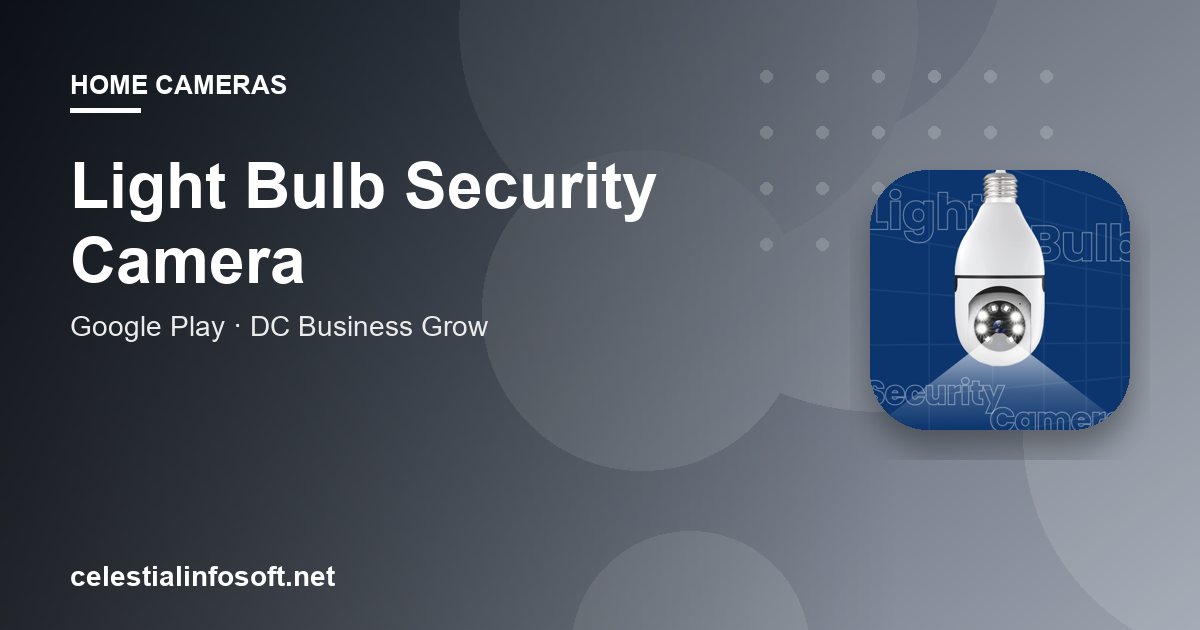
What this app is
Light Bulb Security Camera is an app from DC Business Grow, filed in the Business category on the store. The listing presents it as a way to manage a smart home from one place: live camera feeds, motion alerts and remote access, with a headline mention of 360-degree surveillance. Its examples are checking in on a baby, pets, children or elderly relatives, and confirming your home is secure while you are away.
The listing text is short. It lists feature names but gives few details on how setup works, which cameras are supported or how video is stored. This guide therefore leans on general good practice for Wi-Fi cameras, and marks where you need to check the store page.
What the store listing says it offers
- Indoor security cameras and outdoor weatherproof cameras.
- A smart video doorbell.
- Full HD video quality.
- Real-time live feeds.
- Motion detection alerts.
- Night vision for low light.
- Remote access, with checking on babies, pets, kids or elders as use cases.
What the listing does not say, at least in the text reviewed: which hardware is supported, whether a subscription or cloud storage is involved, whether footage is stored locally on an SD card, whether audio or two-way talk is available, or how data is encrypted. Do not assume any of these. Read the full store page, the Data safety section, screenshots and reviews, and ask the seller of your camera whether it pairs with this specific app.
How bulb-style cameras work
A light bulb camera screws into a normal socket and combines a bulb with a small Wi-Fi camera. It draws power from the fitting, joins your Wi-Fi and streams video to a phone app. Key consequences:
- The light switch must stay on. If someone flips the wall switch, the camera loses power.
- Wi-Fi signal strength in the ceiling position matters more than anywhere else, because you are installing it where routers rarely reach.
- Fixtures vary: enclosed glass shades can trap heat, and some bulbs are rated only for certain fittings. Follow the manufacturer’s guidance.
- Field of view changes when the bulb is pointed down from a ceiling.
Our light bulb camera setup tips cover position, power and pairing steps in more depth.
Getting set up step by step
- Check the camera’s manual to confirm which app it needs. Install this app only if it matches.
- Make sure your phone is on the 2.4 GHz Wi-Fi network if the camera requires it; many low-cost cameras do not connect to 5 GHz.
- Open the app and allow notifications. Add the camera using the flow it presents, which is usually via a QR code or a pairing mode. Follow the app’s own prompts.
- Install the bulb in the fitting and switch on the power.
- Check the live view, then test motion by walking through the frame.
- Name the camera by room so alerts are clear.
- Set the motion sensitivity low at first, then raise it if events are missed.
- Test alerts when your phone is on mobile data to confirm remote access works.
Everyday use and tips
- Start with one camera and tune it before adding more.
- Use motion zones or sensitivity settings, if offered, to avoid alerts from curtains, pets or fans.
- Check the night vision image after dark, since glare from windows can ruin it.
- Keep firmware and the app up to date when updates are offered.
- Use a strong, unique password for the camera account and enable any extra sign-in protection available.
- Share access with family members through the app’s own sharing feature rather than sharing your login.
- Do not make the live feed public or post screenshots of it.
Privacy and placement
A camera is a privacy decision as well as a security one. Keep it to areas you own or control, tell people who live in or visit the home that cameras are in use, and avoid bedrooms and bathrooms. Outdoor cameras should not capture neighbours’ windows or gardens. Our security camera privacy and placement guide explains where to point cameras, how to handle guests and what to do with stored footage. If the camera watches a child or an older relative, agree on it with them where possible.
Privacy and permissions checklist
- Read the Data safety section: does the app collect video, audio, location or device identifiers, and is it shared?
- Check where video goes: the camera’s memory card, a vendor cloud or somewhere else. Confirm whether this costs extra.
- Grant notifications; grant camera, microphone or location only if a feature you use needs them.
- Put the camera on a guest or IoT network if your router supports it.
- Change default passwords and disable features you do not use.
- Look up the developer and check that the app’s listing links to a privacy policy.
Troubleshooting common problems
- Camera offline: check power at the socket, the Wi-Fi password and signal strength. Our Wi-Fi camera offline troubleshooting has a step-by-step list.
- Pairing fails: use the 2.4 GHz band, move closer to the router, and reset the camera per the manual.
- No notifications: allow them in Android settings and disable battery restrictions for the app.
- Choppy video: reduce quality or improve Wi-Fi; avoid sharing the channel with many devices.
- False alerts: lower sensitivity and avoid pointing at windows or moving foliage.
- Bulb flickers: try a different fitting or check compatibility with dimmer switches.
Who it suits
It suits renters and homeowners who want a simple, low-install camera, parents and carers wanting a quick check-in, and pet owners. It may not suit anyone needing professional-grade surveillance, local-only storage guarantees or integrations with a specific smart home platform, none of which the listing confirms. The Business category label is also worth noting; check the store page to see whether the app targets consumers or small businesses.
Alternatives and complementary settings
Well-known camera brands ship their own apps and often better-documented hardware support. Whichever route you take, secure your router with a strong password and keep its firmware current. Browse the camera topic hub for more guides and the app directory for other options.
Where to go next
Verify compatibility and storage terms before purchase, then follow the setup and privacy guides above. Check the store listing for current version, ratings and any subscription details, because the listing text we reviewed does not state them.